Tuesday, March 31, 2015

Adventures in MATE, Lubuntu, and Debian Jessie

It has been a few weeks since I have posted anything and they have been busy ones! I have been putting the iBook to the test loading Lubuntu 14.04 and 15.04, Ubuntu-MATE 14.04 and 15.04, also Debian Jessie. So here is a quick run down of my thoughts on these distros.

14.04 Lubuntu and Ubuntu-MATE

The install of these distros was as expected. No real hiccups to report. I did notice that some web pages did not load correctly in firefox but they would fine on Iceweasel in Debian. There were not many but it was annoying. Also without some compositing (ie using compton) video playback was choppy. Now one thing that di1 d excite me was in the Ubuntu-MATE release notes there are patched .deb files for mesa and .deb files for Compiz. So obviously I installed them to see if I can get some sweet 3D compositing! Well it was a little buggy but I did get the cube up! (see screenshot below).


15.04 Lubuntu and Ubuntu-MATE

Beta1 of Ubuntu-MATE ran really well. I have posted a really nice screenshot of my desktop with Numix based themes and icons. However Beta2 was a total bust! When I upgraded MATE it crashed my system completely. Lubuntu would not even load the live iso and MATE would crash when I try. There is active bug report on Launch Pad detailing it. If you are similar issues please post them there.


Debian Jessie

I am huge fan of Debian. My PowerBook G4 is running stable due to its reliability. I first ran Jessie months ago and was caught by surprise with some of the issues I ran across. Now coming back to it with a lot more experience with Linux on PowerPC it was a much smoother experience. There have been some great improvements since the last time I ran Jessie. Getting KMS going is not the pain it once was due mostly to know what parameters to set on boot (see my previous post here). Video playback was great and overall there is not much negative to say. There two areas that got annoyed me. First was the sound. You need to enable the snd-aoa-i2sbus module to enable alsamixer, however even after I got that working there was no sound. I need to install the pauvcontrol package to finally enable sound. Second there has been a long standing javascript bug that broke GTK web browsers in Ubuntu and Debian Jessie. Finally there is a patch that fixed this issue! Hopefully will be making it to both the Debain and Ubuntu repos soon. Also it looks like Jessie is set for official release on April 25. I will be looking forward to it!

Wednesday, March 11, 2015

Ubuntu-MATE on my iBook G4!


So I have been wanting another PowerPC machine to some more testing of different linux distros on. My current PowerBook G4 has been my main laptop for a few months and I am pretty happy with Debian on it right now. So I have been searching craigslist and ebay for any good deals on iBooks. I was able to get an iBook G4 1.42 GHz for about $96 on criagslist. I was excited to bring it home to begin the job of getting Linux to run on it. It had  768MB of RAM so I ordered a 1GB stick from OWC, it should be arriving this week. So here are my thoughts on 15.04 MATE

1. Install
    The install was very straight forward. However to boot into the live iso you will need to this at yaboot (see graphics section below for detail):

live radeon.modeset=1 video=radeonfb:off video=offb:off video=1024x768-32[enter your screen resolution] radeon.agpmode=-1 

The CD Rom has some issues so I decided to go with a USB install. On iBook G4 macines this means booting into openfirmware and running a command like this: boot usb1/@1:2,\\yaboot. There is great information on USB booting on the UbuntuPowerPC wiki if you want more detail. Once you get the installer going it is pretty standard and simple.

2. Wireless
    The Ubuntu Community Documentation Site has a really good walkthtough on installing firmware on Broadcom wireless cards here. Once I identified my chipset I was able to download the proper driver: sudo apt-get install firmware-b43-installer

3. Sound
    Begining with 14.04 there are known issues with sound on PowerPC Macs. There are some ibooks and powerbooks requires modules to be recompiled. There is an extensive discussion thread on the Ubuntu Forums here. Thankfully this was not the case with either my iBook G4 or my PowerBook G4. I just need to delete the file /etc/modprobe.d/blacklist.local.conf then I need to load the correct module by running this command: sudo modprobe snd-aoa-i2sbus. I then ran the command alsamixer and set the PCM channel to 80. Once that was set I added the snd-aoa-i2sbus module to the /etc/modules so it would load on boot. There is more information on sound issues at the UbuntuPowerPC wiki. This issue is also exprienced on Debian testing (Jessie).

4. Graphics
    Since 14.10 you need to enable KMS if you have a radeon video card (see this bug thread). KMS has been known to be buggy so in the past you had the option to disable it. Now without it you will have issue like no XVid playback. I entered the following on my iBook to enable KMS on the second yaboot screen on boot: 

Linux radeon.modeset=1 video=radeonfb:off video=offb:off video=1024x768-32 radeon.agpmode=-1 

When you login you will need to these paramters to the /etc/yaboot.conf file. You add them this way:

image=/boot/vmlinux
        label=Linux
        read-only
        initrd=/boot/initrd.img
        append="quiet splash radeon.modeset=1 video=radeonfb:off video=offb:off video=1024x768-32 radeon.agpmode=-1"

image=/boot/vmlinux.old
        label=old
        read-only
        initrd=/boot/initrd.img.old
        append="quiet splash radeon.modeset=1 video=radeonfb:off video=offb:off video=1024x768-32 radeon.agpmode=-1"

One you add these setting using nano, vi or whatever editor you use. You wil to run the following command sudo ybin -v to apply the changes. You should see the following or something similar if KMS is enabled.

:~$ cat /var/log/Xorg.0.log |grep -e drm -e dri2 -e radeon -e KMS
[    31.499] Kernel command line: root=UUID=cbe24412-5af3-4fd4-8a99-179d70cf2b66 ro quiet splash video=radeonfb:off radeon.modeset=1 video=radeonfb:off video=offb:off video=1024x768-32 radeon.agpmode=-1
[    31.522] (II) xfree86: Adding drm device (/dev/dri/card0)
[    31.806] (II) LoadModule: "radeon"
[    31.806] (II) Loading /usr/lib/xorg/modules/drivers/radeon_drv.so
[    31.901] (II) Module radeon: vendor="X.Org Foundation"
[    32.124] (II) [KMS] Kernel modesetting enabled.
[    32.127] (II) Loading sub module "dri2"
[    32.127] (II) LoadModule: "dri2"
[    32.127] (II) Module "dri2" already built-in
[    32.144] (II) RADEON(0): KMS Color Tiling: enabled
[    32.145] (II) RADEON(0): KMS Color Tiling 2D: disabled
[    32.145] (II) RADEON(0): KMS Pageflipping: enabled
[    33.081] (II) config/udev: Adding drm device (/dev/dri/card0) card0 /sys/devices/pci0000:00/0000:00:10.0/drm/card0
[    33.081] (II) config/udev: Ignoring already known drm device (/dev/dri/card0)

Having KMS enabled does not mean that you will have 3D acceleration. There are issues with the Mesa r300 driver that will require you to set the default screen depth on you xorg.conf file to 16. However this will limit your display. There are patched deb files for Mesa that fix this issue. However they are only for 14.04 version of Mesa. If you want them you can download them here. There is also more information on configuring graphics on the UbuntuPowerPC wiki as well.

5. Performance
   The desktop, while not as fast as my PowerBook running LXDE on Debian, performed well. Moving the mouse around was a little sluggish at times, but I am thinking that could be either the trackpad or maybe I needed more RAM. Video playback using mpv was as great. I was able to get some decent 720p playback on some videos. Since I was running 15.04 version I was not able to really use the patch for r300 mesa driver needed for 3D acceleration. This means that some of the games I wanted to play like Supertuxkart was just not possible. Web browser was good with the exception that firefox could load certain pages that would load fine on Debian using iceweasel. I am seeing the same issue with Lubuntu 14.04 so I do think it is an issue Ubuntu-MATE specifically. So if you have an iBook, PowerBook, and especially a Powermac G4 or G5 give Ubuntu-MATE a try!


Monday, March 2, 2015

Making LXDE look good!

LXDE is light and fast, but it leaves much to be desired when it comes to design. It is not at all as flashy as GNOME or KDE. It is the trade off for having a desktop that can run on old hardware. This does not mean that it is not customizable so that you can really nice looking desktop as you surf the web, edit documents or whatever else you do. I will share you somethings I have done to spruce up LXDE.


Panel Settings


When you right click on the panel one of the options you get is to modify the panel settings. There you change the placement of the panel, its background, and what type of applications and applets you wish to display. I personally like to have a little transparency on the panel.


Compositing


LXDE does not have compiz as a feature but there are some good compositing tools you can use. If you are running Debian Whezzy you have the option of running xcompmgr. It gives you some basic compositing effects and allows you have a 3D dock if you prefer. It runs on the command line and you have to set it to launch on startup. You can plenty of of information in the Arch Wiki on xcompmgr. If you running Jessie or lubuntu 14.04 or later you can run a fork of xcompmgr called compton. Compton is not available in Wheezy if it was I would be using it. It is more stable than xcompmgr. The Arch Wiki has more great info on how to use plus the Lubuntu blog has a great post on how to use it on LXDE as well. To install just enter sudo apt-get install xcompmgr or sudo apt-get install compton in the terminal.


Themes and Icons


LXDE comes with a few predefined set of themes and icons. However you can add more to further customize your desktop. A good place to look is gnome-look.org there you can search and download what ever set of themes and icons you like. They come compress so you would need to extract them. The uncompressed folders need to be placed in ~/.themes and ~/.icons directories (you will need to create them if you have not already). Remember that since they have a "." at the beginning of the folder name that will be hidden in you home directory. So in order to see what is in them on the cli you need to enter ls -a and in your file manger you will have to use CRTL-H. Once you have them in those directories then goto applications (LXDE icon on the panel) -> prefrences -> customize look and feel there you can set the themes and icons to the ones you selected. I chose Numix-N_OB and Nitrux for my theme and icon set.


Guake


Guake is a top down terminal. It runs in the background and you use F12 to launch. It is awesome if you want to do quick terminal editing. You can install with sudo apt-get install guake.


Docky

If you are looking for a nice application dock then docky is it. You can have as a 2D or 3D (be sure to compositing enabled for 3D). There are multiple options for themes and applets you can use. To install is as simple as sudo apt-get install docky.


Here are some screenshot my LXDE session:


Wednesday, February 25, 2015

Adblocking with Qupzilla!

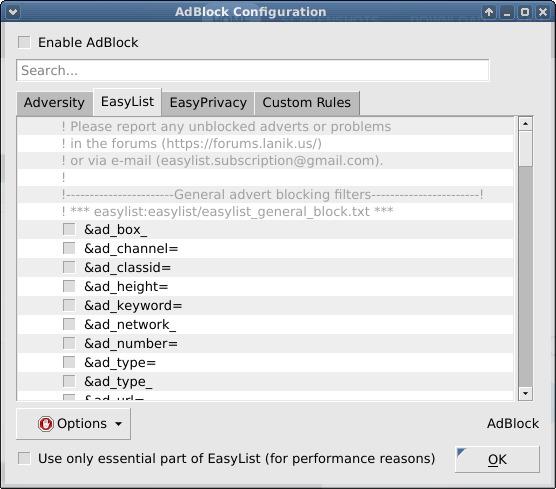
Recently there has been some controversy over Adblock Plus allowing Google pass through their filters for a fee. This has annoyed many people who use adblock for specifically to block them. A really good alternative has arisen for both Firefox and Chrome called uBlock. I have used it and can testify that it works great. Which brings me to a Qupzilla's native adblock plugin that is simply fantastic! It is on by default it is easily customizable. Just go to tools -> Adblock to make changes.


Then you can make configuration changes to the plugin. Can you see your current subscriptions also you write your own! Under Options you can add a new subscription from either a list of predefined one or add one yourself. You can also remove and update your current subscriptions. It has has made improved my browsing greatly. If you are using Qupzilla take the time and look at this feature.

Tuesday, February 24, 2015

Ubuntu MATE to be an offical flavor soon!

Congrats to the Ubuntu MATE Team!It looks like their 15.04 release will the first as an Offical Ubuntu flavor. People who are looking for more a traditional desktop look on Linux should check out Ubuntu MATE. I posted a previous video by Luigi showing Ubuntu MATE on PowerPC. So if you have a G4 or G5 there is a PPC ISO you can grab and install.


read more here
visit The Ubuntu MATE site
PowerPC ISO here


UPDATE: Ubuntu MATE will officially support PowerPC in 15.04! See their blog.

Tuesday, February 10, 2015

The Best Linux on PowerPC video on the Web!

Luigi Burdo, a frequent poster on the Ubuntu Forums, posted an awesome video of his G4 MacMini running Ubuntu MATE PPC. I usually visit youtube to see Linux on PPC videos. The ones I have seen have really been not that great. Mostly it is just complaints on things not working. No one really posted a video sharing what Linux could be if one placed the work in. Well Luigi did and it has inspired me to post one of my own soon. So please check it out!


Lightweight browsers Part II: Luakit and dwb

These next two browsers are extremely light and fast. They also consume minimal RAM and are not as CPU intensive as other browsers. This makes these ideal for older machines with lower CPU and RAM running.  A challenge to be addressed is that both are vim based browsers so they are heavily keyboard driven. There is a normal or command mode when execute commands like opening a URL in the current tab or opening a new tab, bookmarking pages, performing searches and much more. If you need to type in a web page (like a Google search for example) then you would need to enter the insert mode by using 'i' on the keyboard. People who are not familiar with vim will have a bit of a learning curve. However, if take the time to learn these browsers can make web surfing on an old PPC or even Intel based machine a fast experience. You will still need a browser like iceweasel/firefox for some sites like Facebook.

dwb

The following description is found on the website:

dwb is a lightweight web browser based on the webkit web browser engine and the gtk toolkit. dwb is highly customizable and can be easily configured through a web interface. It intends to be mostly keyboard driven, inspired by firefox's vimperator plugin.

What makes this browser appealing is the fast page rendering. While you are in command mode you type 'open url' to open a web page. If you want to open a page in a new tab then you would type 'Open URL'. Also to goto the settings page you enter the following 'Ss'. A complete list of the command options can be found on man page or you can see them here. Some drawbacks I found are moving through tabs and using extensions. There are times when moving between tabs would just not work unless I used my mouse. This at times got pretty annoying after a while. Also I wanted to use the adblocker extension, but I could never get that to work. It could be that debian stable did not seem to have all the features in its distro. It could be that on an distro like Arch you get a better experience. Here are some screenshots.


The following is from the Luakit site:

"Luakit is a highly configurable, browser framework based on the WebKit web content engine and the GTK+ toolkit. It is very fast, extensible by Lua and licensed under the GNU GPLv3 license. It is primarily targeted at power users, developers and any people with too much time on their hands who want to have fine-grained control over their web browsers behaviour and interface."

This browsers is so customizable! Want adblocking no problem. Want watch videos  with mplayer or mpv instead of the browser no problem. All they configuration is done in the Lua language on configuaration files. There is a great YouTube video explaining what you can do with luakit. If you want lightwight, fast, and a customizable browers then give luakit a try!